Laser Cut Box Generator (Finger Joint Box)
Enter the box size and material thickness to get a finger-joint box template you can download as SVG or DXF and cut on any laser.
A laser cut box generator is a free, browser-based tool that builds finger-joint box templates you can send straight to a laser cutter. Enter the box size, your material thickness and a finger width, and the tool lays out every panel on a sheet with a live preview. You can download the result as an SVG or DXF file, or print it at 100% scale for a 1:1 paper template.
The tool works for plywood, MDF, acrylic and cardboard of any thickness. It builds closed boxes with six panels or open-top boxes with five. Everything runs in your browser, so there is nothing to install, no sign-up, and nothing you type or upload is sent anywhere.
At a glance
Laser Cut Box Generator (Finger Joint Box) is a free browser tool that builds finger-joint box templates with kerf compensation, exporting SVG or DXF files for laser cutting.
- Free, browser-based, with no installation, no sign-up, and no upload of your inputs.
- Builds closed boxes with six panels or open-top boxes with five panels.
- Default box is 100 × 80 × 60 mm inside, with a 10 mm default finger width.
- Download as SVG or DXF, or print the template at 100% scale.
- Kerf compensation grows each outline by half the kerf; a warning appears if kerf exceeds half the material thickness.
- No built-in tables or material data; the box geometry comes entirely from your inputs.
Sources: Laser cutting (Wikipedia) (checked 2026-10-15)
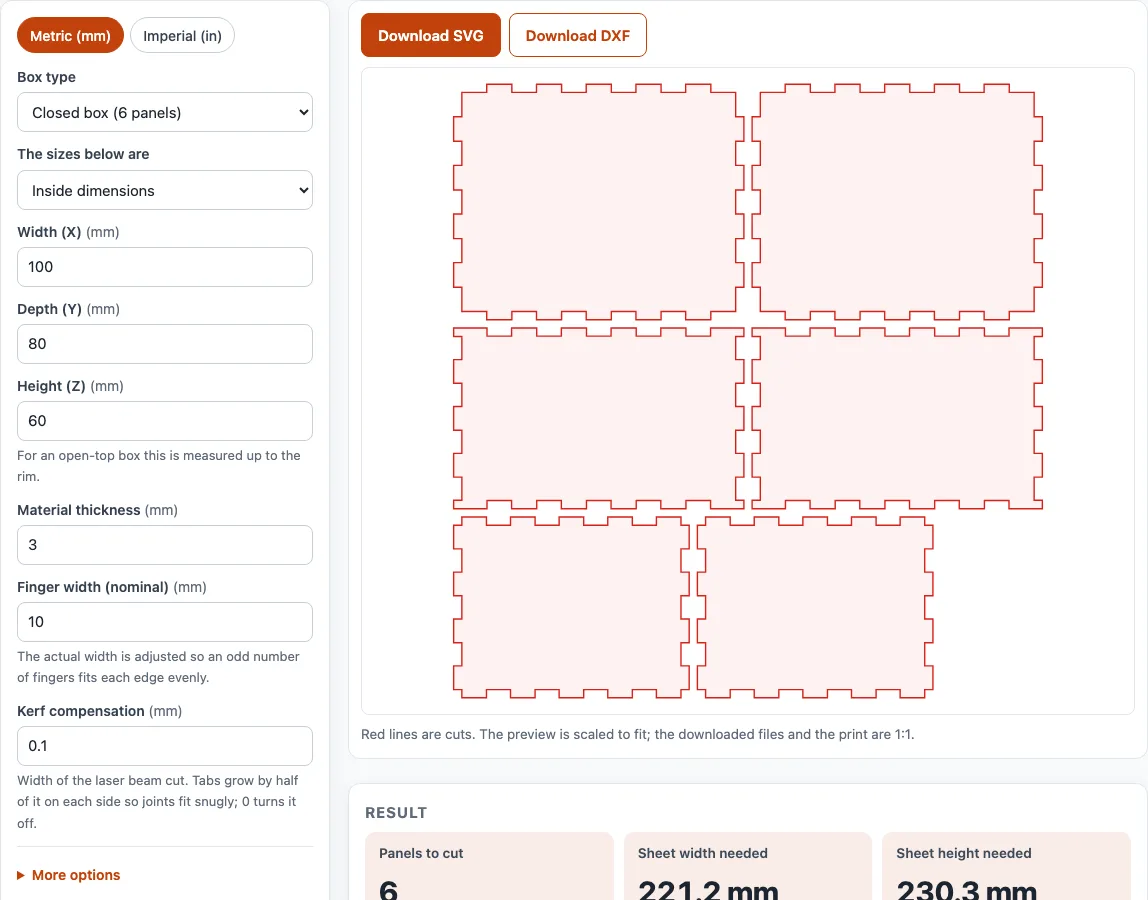
How to use the Laser cut box generator
- Set the units with the Metric (mm) / Imperial (in) switch at the top of the tool.
- Choose a Box type: Closed box (6 panels) or Open top (5 panels).
- Under “The sizes below are”, pick Inside dimensions or Outside dimensions.
- Enter Width (X), Depth (Y) and Height (Z). The defaults are 100 × 80 × 60 mm inside.
- Enter the Material thickness. Measure your sheet, because 3 mm plywood is often thinner or thicker than its nominal size.
- Set the Finger width (nominal). The default is 10 mm.
- Set Kerf compensation. Enter your laser’s kerf, or enter 0 to turn the correction off.
- Optional: under More options, turn on Engrave a name on each panel, or change Space between parts.
- Check the live preview and any warnings. Read the finger width the tool shows, since it differs from your nominal value so the fingers fit evenly.
- Click Download SVG or Download DXF, or print the template at 100% scale.
Click Print / save result to print the inputs, results, calculation steps and date. Use the browser’s Save as PDF option if you want a PDF. Copy link reopens the page with the same inputs, and Reset clears the form so you can start a new box.
How to make a laser cut box
A laser cut box is built from flat panels that slot together at the corners. Each corner is a finger joint: the edge is divided into fingers, and the fingers of one panel fit into matching slots in the next. The tool divides each edge into an odd number of equal fingers, so both ends of a joint belong to the same panel.
The panel sizes depend on how you measure. Outside size equals inside size plus two times the material thickness, because each side panel adds one thickness. An open-top box adds one more thickness to the height, since it has no lid. For the default 100 × 80 × 60 mm inside box with 3 mm material, the outside size is 106 × 86 × 66 mm.
The tool then chooses the finger count for each edge. In the default example it uses 11 fingers on the width edges (9.09 mm each), 9 on the depth edges (8.89 mm) and 7 on the height edges (8.57 mm). The six panels fit on a 221.2 × 230.3 mm sheet, and the total cut length is 2,618 mm.
What is kerf in laser cutting
Kerf is the width of material the laser beam burns away as it cuts. Because that thin line is removed, a cut part comes out slightly smaller than its drawn outline, and a slot comes out slightly wider. Without a correction, tabs end up too small and joints feel loose.
Kerf compensation fixes this. The tool grows every outline by half the kerf, so the tabs end up the right size and the joints fit snugly. Enter your kerf in Kerf compensation, or enter 0 to turn the correction off.
To find your kerf, cut a square of known size, then measure how much smaller it came out than drawn. Kerf depends on the material, laser power and cutting speed, so measure it for each combination you use. If the kerf is more than half the material thickness, the tool shows a warning, and the setting should be checked before cutting.
Sources
The box is pure geometry from your inputs (inside or outside size, thickness, finger width, kerf); no tables or material data are built in. The bed size for the fit check is your input.
Frequently asked questions
What finger width should I use for a laser cut box?
The default 10 mm works for the sample box, and the tool shows the adjusted width it will use. Keep the finger width at least twice the material thickness, because narrower fingers make fragile tabs. Also keep at least three fingers on every edge.
Can I use the files for a product I sell?
Yes. Results and files may be used in commercial work, including quotes, client jobs and products you sell. They are royalty-free, and no attribution is required. The only limit is copying the site itself as a competing service.
Which file format should I download?
Choose SVG or DXF based on your laser software. The SVG is at real millimetre size, with red 0.1 mm cut lines and no fill. The DXF is R12 ASCII in millimetres, with CUT and ENGRAVE layers.
Can I add names or labels to the panels?
Yes. Under More options, turn on Engrave a name on each panel. Labels appear in blue in the SVG, and on the ENGRAVE layer in the DXF.
Why does the tool warn that my layout is too big?
The warning appears when the panel layout is larger than the laser bed you enter under More options (600 × 400 mm is only the example value). Reduce the box size or the space between parts, or cut the panels in two jobs, so each part fits on your bed.
How accurate are the results?
The results are for estimation. The joints were checked by an automated test that assembles the six panels in 3D and confirms that every joint interlocks with no gaps or overlaps. For critical designs, verify the dimensions against the applicable standard and your supplier’s data.
Related tools
- Gear generator: use it to design gears for mechanical parts you plan to cut or make.
- Photo to laser engraving: use it to prepare a photo for engraving on a panel or other surface.
- Laser cutting cost calculator: use it to estimate what a laser cutting job will cost before you order it.
- Sheet metal gauge chart: use it to look up sheet thickness by gauge number when you choose a material.
- Aluminum gauge chart: use it to check aluminum sheet thickness by gauge.
- Bend allowance calculator: use it to work out how much material a bend takes up in a metal part.
- Metal weight calculator: use it to estimate the weight of a metal part from its size and material.
- Cone flat pattern calculator: use it for cone-shaped parts.
- Kerf calculator: use it to allow for the width of the cut: part and hole offsets, kerf-bend spacing and cut layout.